
Guide
Free email extractor: what free tools do, and what they miss
Online paste-in tools, desktop downloads and browser extensions all call themselves free. Here is what each one actually gives you.
Any free email extractor will pull the addresses published on a page you point it at. Where free tools really differ is what they can see — the raw HTML, or the page as your browser renders it — how many pages they will visit for you, and whether they tell you where each address came from. Email Extractor Plus, our browser extension, is free to install and lists every address on any page you open in one click.
Below: the three kinds of free tool, what each does well and badly, and then a step-by-step walkthrough of our extension on sample pages you can try while you read.
Three kinds of free email extractor
Online paste-in tools. A web page with a box. You paste a URL or a block of text, a server does the work, and a list of addresses comes back. Nothing to install.
Desktop software. A program you download and run, usually on Windows. It fetches pages itself, outside your browser, and often crawls whole sites.
Browser extensions. An add-on that reads the page you already have open, and in some cases opens a list of pages for you.
All three read pages. None of them looks people up by name in a database — that is a different kind of product, and the difference between database lookup tools and page readers decides which one you need.
Free email extractor online: what paste-in tools do well
There is nothing to install, so they work on a phone or a locked-down work computer. A single URL or a pasted paragraph gives a result in seconds. Many also pull addresses out of text you paste in — an email thread, a document, a spreadsheet column. Email Extractor Plus does not do that. If what you have is text or a file rather than a web page, an online text extractor is the right tool.
…and where they fall short
- They see raw HTML. An address that a page adds with a script after it loads is not in the HTML the server fetches, so the tool reports nothing — and you cannot tell "no address" from "didn't see it". Tools of this kind say as much in their own help text.
- They arrive as a datacentre with no session, which is what bot protection is built to stop. Free tiers usually take one URL at a time, or a few a day.
- The output is a bare list — no labels, no record of which page each address came from.
- Your list and results pass through someone else's server. That is not a problem in itself; it is worth knowing where your data goes, and the extension section below says the same about ours.
Free email extractor download: desktop software in brief
Long-established Windows programs still rank for this search. Their free versions typically cap the number of results or lock export until you buy a licence. Many default to crawling entire sites, which is slow and mostly wasted effort — the scrape guide explains why in the three kinds of bulk tool. They also run outside your browser, so anything behind a login you already have is out of reach.
A free email extractor extension: reading the page you already have open
An extension reads the page as your browser has rendered it, including addresses a script added after loading. With Email Extractor Plus the toolbar badge shows how many addresses are on a page as soon as it opens; click the icon to see them with their labels and copy them. Ctrl+Shift+1 (Command+Shift+1 on Mac) copies every address on the page without opening anything.
The costs are real too. You have to install it. It runs on desktop Chrome and Edge only. It asks for access to all sites, because you decide which page to read and it cannot know in advance which sites those will be. And when it works through a list, it occupies a browser window and is slower than a server.
Where the data goes
The page is read inside your browser and is never uploaded. Addresses you save to your library go to your account, with a copy on your device; Save to account can be switched off in Settings. We do not sell or share the data. The details are in our privacy policy.
Online tool or extension? A side-by-side
| Online paste-in tool | Browser extension | |
|---|---|---|
| Install | Nothing to install | Installed once, in Chrome or Edge |
| Addresses added by scripts | Often missed — many read only the raw HTML | Seen — reads the rendered page |
| Pasted text or files | Usually supported | Not supported |
| URLs at a time | Often one, or a few a day on free tiers | Up to 1,000 per run |
| Where requests come from | The tool's servers | Your own browser and connection |
| Addresses labelled | Rarely | Company, Generic, Free mail and more |
| Source of each address recorded | Rarely | Page, title and starting URL |
| Works on a phone | Yes | No — desktop only |
| Your data passes through | The tool's server | Your account, for addresses you save |
In short: a block of text, or one URL now and then — use an online tool. If you are already browsing the sites, or you have a list of URLs — use an extension.
How to use Email Extractor Plus as a free email extractor
- 1. Install it. Add it to Chrome from the Chrome Web Store; it runs in desktop Chrome and Edge.
- 2. Open a page and click the icon. The toolbar badge already shows how many addresses the page has. The popup lists each one with coloured labels such as Company, Generic and Free mail.
- 3. Copy or export. Press Copy to put the ticked addresses on your clipboard, or TXT or CSV to download them as a file. Untick anything you do not want first.
- 4. Let the library collect them. Switch on Auto-save to library at the bottom of the popup and every address you come across while browsing is kept, with the page it was found on. Press Library to search, filter by label, domain or batch, and export later.
- 5. Run a whole list. In the Library, open Bulk search and paste up to 1,000 website addresses, or press Import links from a page to take every link from a directory you have open. Press Start and it visits each site for you.
Try it free on a sample page
All you need is the extension installed; no account.
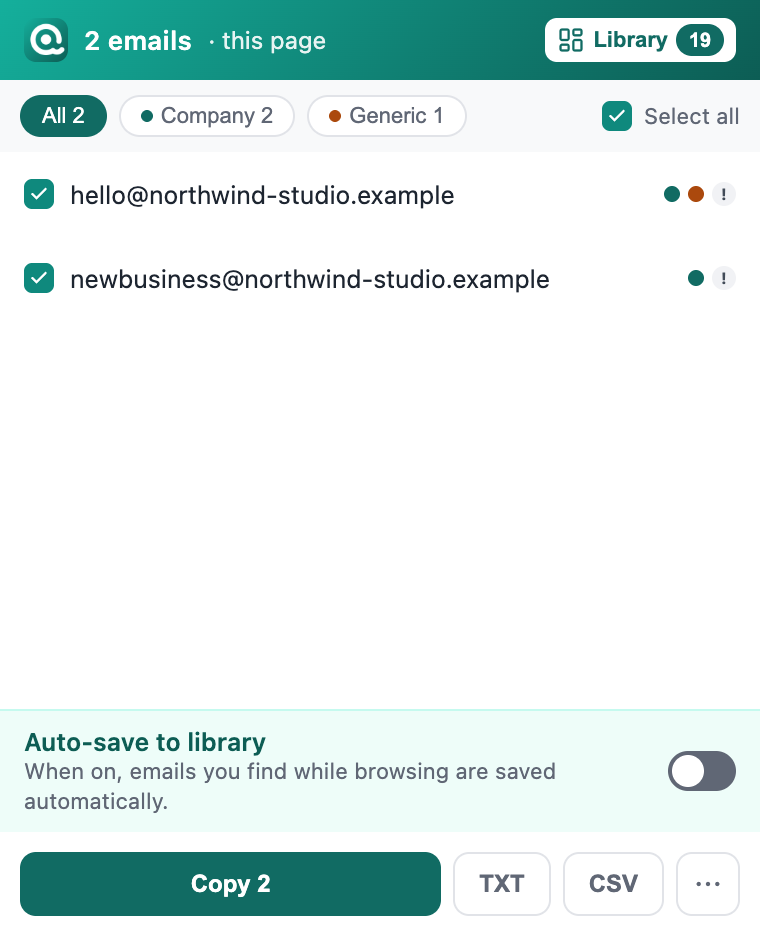
1. One page. Open a sample contact page and click the extension icon. You get two addresses with their coloured dots, plus a grey ! (Unusual ending) because sample addresses end in .example. That is the popup shown above. Press Copy 2 and both are on your clipboard.
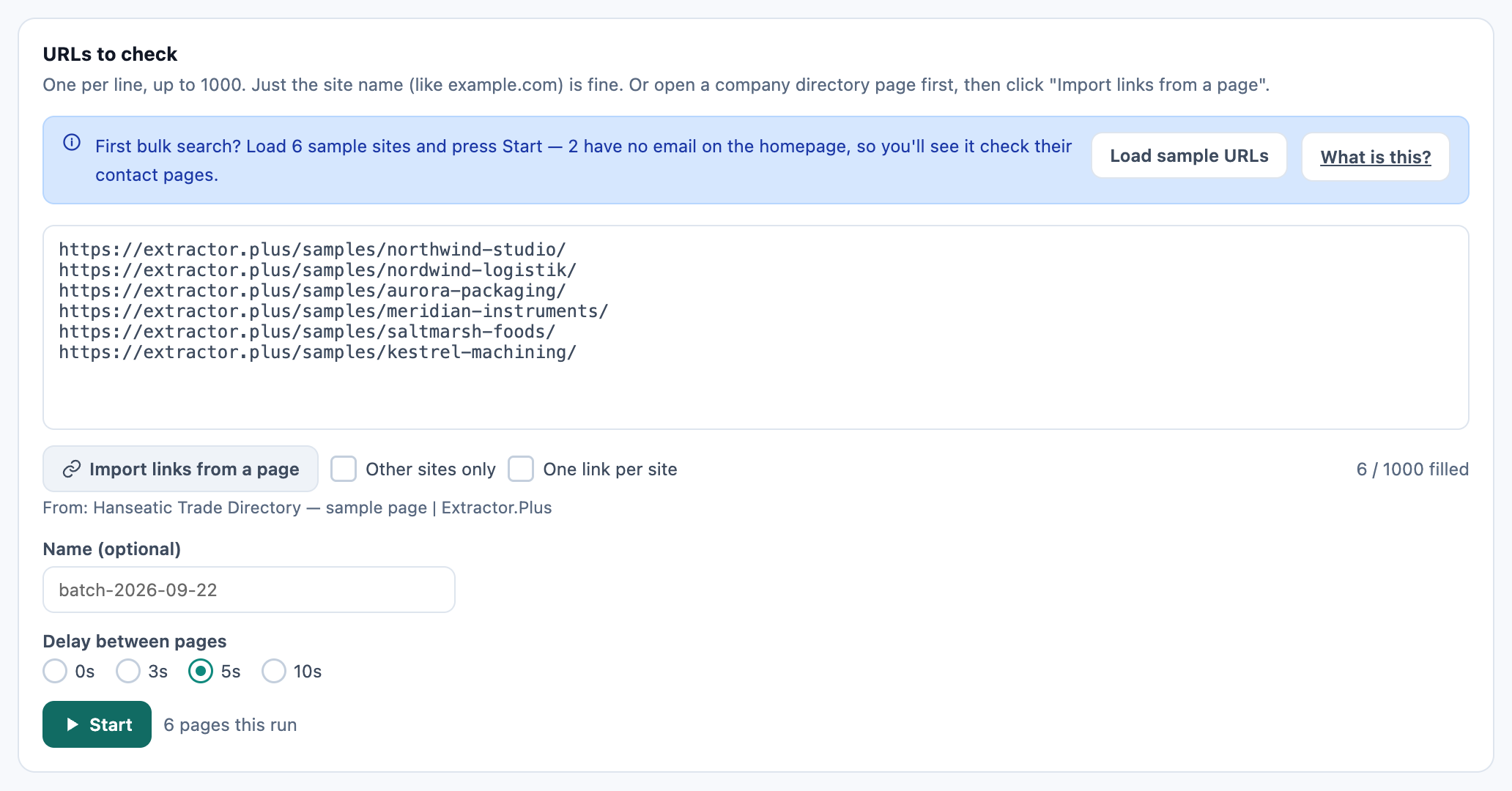
2. A small bulk run. Click the icon, press Library, open Bulk search, press Load sample URLs and then Start. The six sample company sites go into URLs to check, and the line next to the button confirms 6 pages this run.
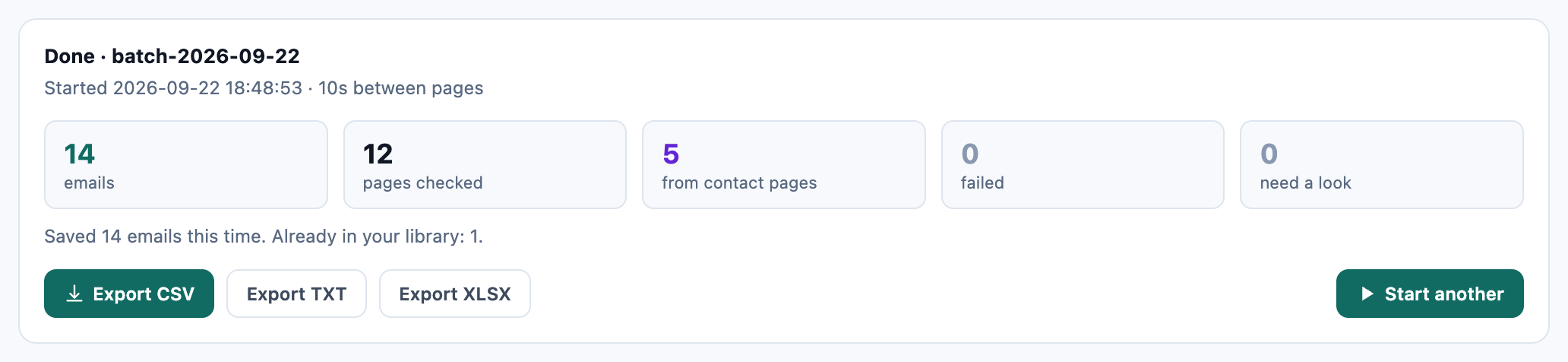
When the run finishes, a card shows how many emails were found, how many pages were checked and how many came from contact pages, with export buttons underneath. With Check contact pages automatically switched on in Settings, the six sample sites give 14 emails from 12 pages; with it off, 9 from 6, because two of the companies only publish addresses on their contact pages.
Press Export CSV and the file opens in Excel or Google Sheets, one address per row with the page it came from and its labels. The bulk guide walks through how to run a whole list of URLs, from a directory page to a filtered export.
Free email scraper, used responsibly
Read only what companies publish, and leave logins alone — the extension does not get around them. Keep a delay between pages on bulk runs. Collecting an address is not permission to email it; the GDPR and CAN-SPAM rules are summarised in the company email guide.
FAQ
How do I extract emails from a web page for free?
Install Email Extractor Plus, open the page and click the toolbar icon. Every address on the page is listed with its labels; press Copy, or export to TXT or CSV. Ctrl+Shift+1 (Command+Shift+1 on Mac) copies them all without opening the popup.
Is a free email extractor online as good as an extension?
It depends on what you start with. For pasted text or a file, an online tool is the right choice, and our extension does not do that. For web pages or a list of URLs, an extension sees addresses that scripts add to the page and records where each one came from.
Can I extract emails from a URL online for free?
Yes, online tools do this, but they fetch the raw HTML and miss addresses a script adds later. An extension opens the URL in your browser and reads the page as it is displayed.
Is the free email extractor Chrome extension safe to install?
It asks for access to all sites so it can read whichever page you choose, and it uses that access only to find addresses on that page. Pages are never uploaded; addresses you save go to your account with a copy on your device, and Save to account can be switched off in Settings. Our privacy policy has the details.
Can I export extracted emails to Excel?
Yes. Export to CSV from the popup, the finished bulk search card or the Library. The file opens directly in Excel or Google Sheets, with the address, its source page and its labels in separate columns.
How do I extract emails from a list of websites?
Open Bulk search from the Library, paste up to 1,000 URLs or use Import links from a page, and press Start. Each site is visited in turn and the addresses land in your library, ready to filter and export.
Do I need to sign up to use it?
No. Without an account, your library is tied to this installation and cannot be recovered after a reinstall. Signing in attaches it to your account, so you can get it back, and gives you more storage.
Try it free
Extract every address on the pages you open, run a list of URLs through bulk search, and export to CSV. No account, no card.