
Guide
Find emails from a domain: every address the company publishes
Read the company's own pages — home, contact, team, press, careers — and keep the page each address came from. With a sample site to try it on.
To find emails from a domain, open the company's website, import the links on its homepage into Bulk search in Email Extractor Plus, and press Start. It reads each of the company's own pages in your browser — contact, team, press, careers — and gives you every address published there, each with the page it came from. On our sample consulting firm the homepage shows one address; the whole domain has eight.
The walkthrough below uses that sample, Harbourline Consulting, a fictional company whose addresses all end in .example. Open it in a new tab and follow along; the numbers you see should match the ones here.
Email lookup by domain vs reading the domain itself
Search for a way to get emails for a domain and most of what comes back is a lookup tool: you type a domain, and it returns addresses from a database it has built up over time, often with names, job titles and a confidence score. That is useful when you want addresses that were never published on the website — gathered from elsewhere or worked out from the company's naming pattern.
Reading the domain is the other approach. You visit the company's own pages and take what the company itself has put there. You will not get an address it never published, but nothing is guessed or out of date: each address is on the page today, and the page tells you what it is for.
Email Extractor Plus does the second. If you need a particular person's address, the guide to six ways to find a company's address covers the other methods, including working out the address pattern.
Where to find emails on a domain
Companies rarely put everything on the homepage. A typical homepage has a general inbox, or nothing, and the rest are spread across pages the main menu links to:
- Contact — the enquiry and office inboxes, sometimes one per department or office.
- Team, About or People — personal addresses, when a firm lists its partners or staff.
- Press or News — a press office address, and sometimes a named spokesperson.
- Careers or Jobs — the recruitment inbox.
Step 1 — See what the homepage has
On the Harbourline homepage, click the Email Extractor Plus icon. The popup lists one address, info@harbourline-consulting.example, with two coloured dots — Company and Generic, because it is on the company's own domain and it is a shared inbox rather than a person — and a grey ! for the unusual .example ending, which is kept and flagged rather than dropped.
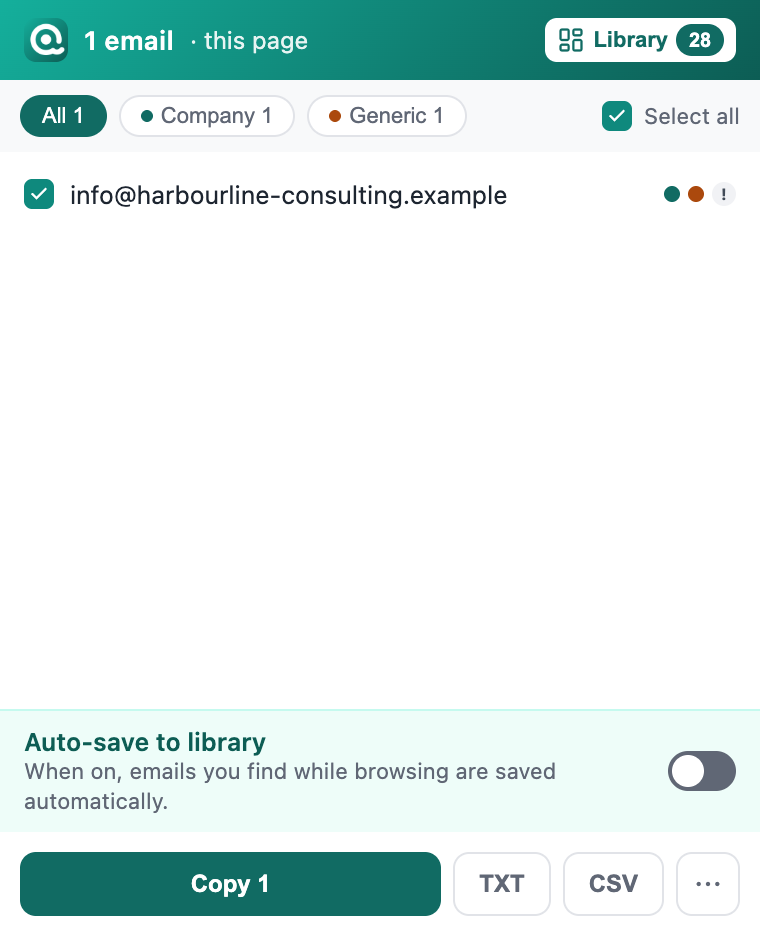
Most people stop there. Look at the menu instead: Home, Contact, Team, Press, Careers. The rest of the domain's addresses are on those four pages, and you do not need to open them one by one.
Step 2 — Import the domain's own links into Bulk search
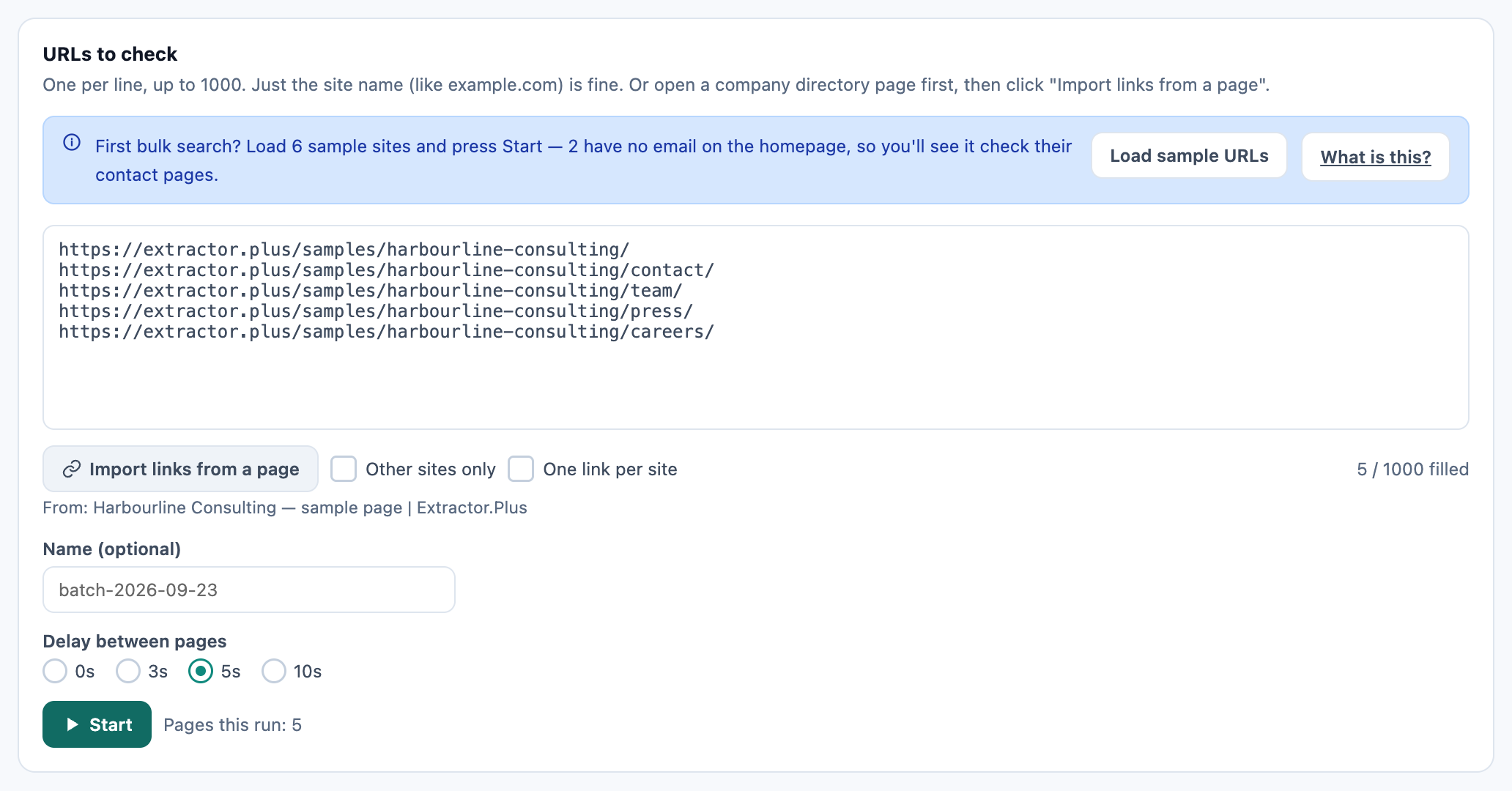
In the popup, press Library, then open Bulk search in the sidebar. Next to Import links from a page are two boxes, both ticked by default. Untick both before you import:
- Other sites only skips links that stay on the same site. Here every page you want is on the company's own domain, so it would skip all of them.
- One link per site keeps a single link for each domain, which would collapse five pages into one.
Now press Import links from a page. URLs to check fills with exactly five addresses — the homepage and its Contact, Team, Press and Careers pages — and the line under the button reads From: Harbourline Consulting — sample page | Extractor.Plus, the title of the page they came from.
On a directory page the defaults are the right choice, because there you want one entry per company and none of the directory's own menu. The short video below shows that version; the buttons are the same.
Step 3 — Press Start and read the finished card
Press Start. Email Extractor Plus opens its own window and visits the five pages in turn, reading each one the way your browser shows it. The finished card reads 8 emails · 5 pages checked · 0 from contact pages · 0 failed · 0 need a look, with Saved 8 emails this time — all new.
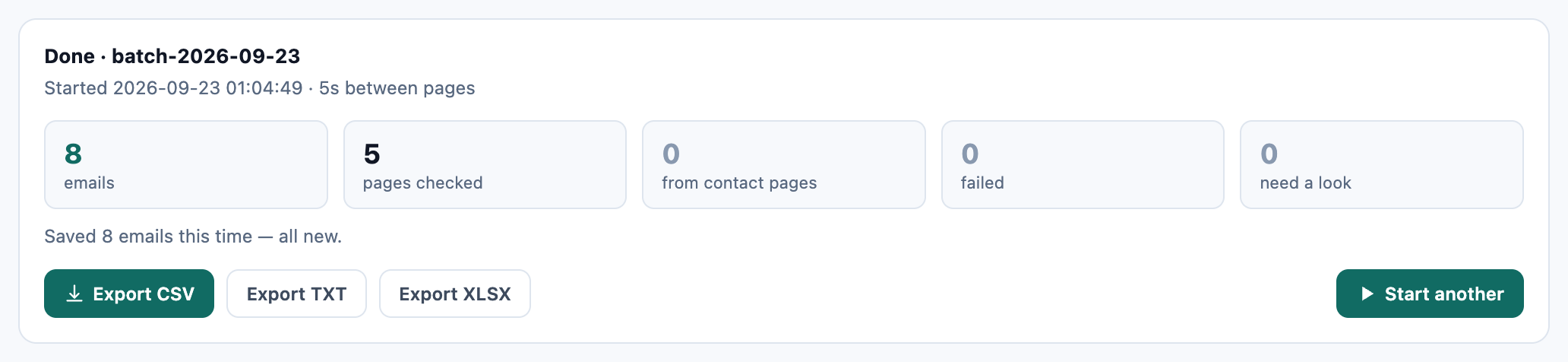
"0 from contact pages" is not a miss. That figure counts contact pages the run found on its own after an empty homepage; here you queued the Contact page yourself, so its addresses count as ordinary results. Where the eight came from:
| Page | Addresses found |
|---|---|
| Home | info@ |
| Contact | projects@, office@ |
| Team | a.marsh@, t.okonkwo@, r.lindqvist@ |
| Press | press@ |
| Careers | jobs@ |
Step 4 — Keep one domain's results together in the Library
Everything the run found is saved to your Library. To see just this company, type its domain into the Source site filter. The eight rows appear on their own, each with the URL and title of the page it was found on — so the team addresses are visibly from the Team page, and jobs@ is visibly the careers inbox rather than someone to pitch.
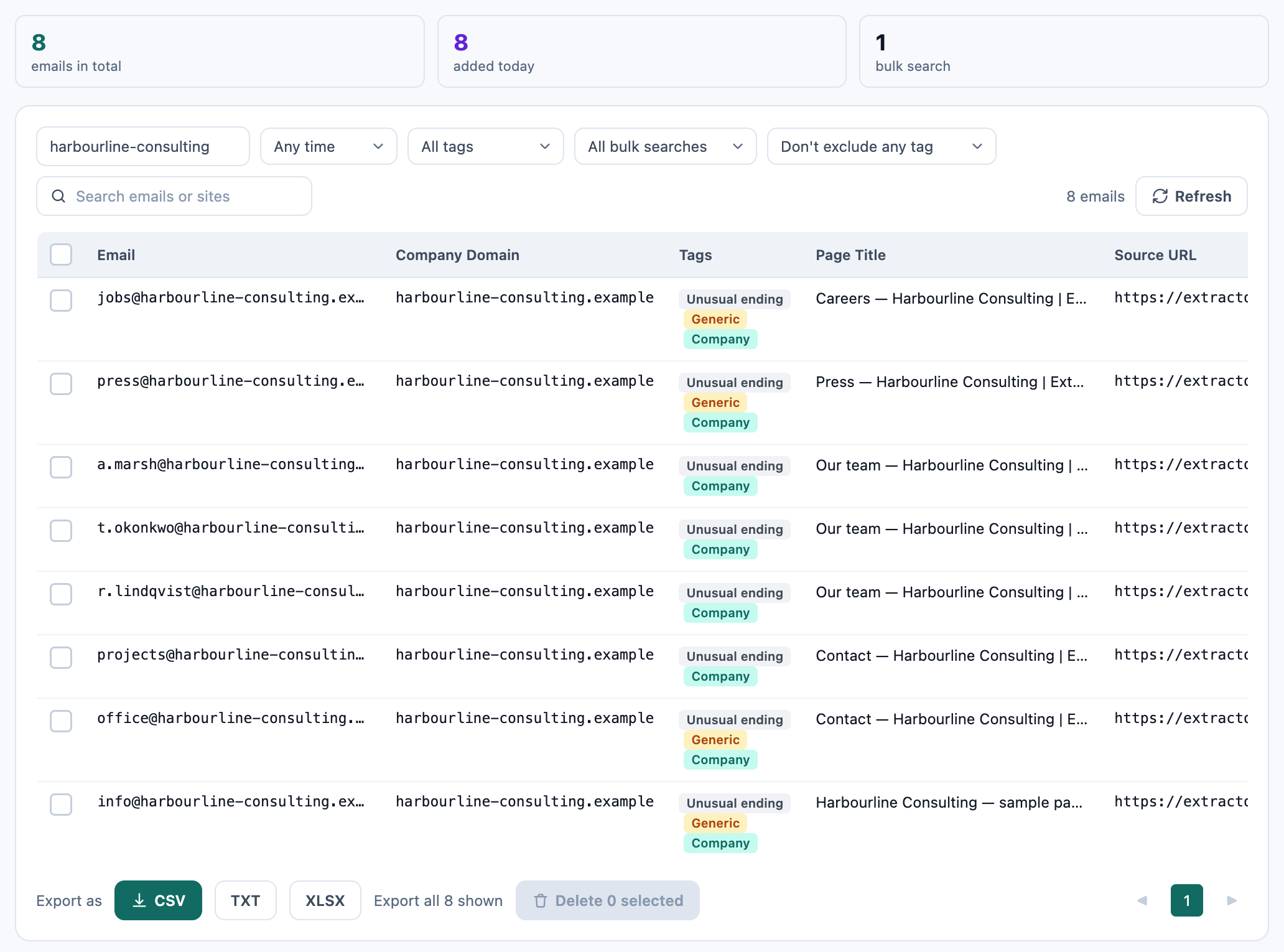
Export the filtered list as CSV and the source URL travels with each address in its own column, next to the page title and labels. When someone asks where an address came from, the answer is in the row.
When the homepage has no email at all
Plenty of company homepages show no address. For those there is a shorter route. On a page with nothing to list, the popup offers Check contact pages, which looks for that site's Contact, About, Team or Impressum page and reads it for you. In a bulk run, the setting Check contact pages automatically does the same for every site whose homepage comes back empty — it stays on that site and goes one level deep.
That is the quicker option when you only want a company's contact inbox. Importing the whole menu, as above, is for when you want everything the domain publishes: named people, press, careers. The scrape guide shows how contact-page checking works on a list of sites, with a short video.
A domain email extractor for a whole list of companies
The method above goes deep on one domain. If you have fifty companies instead, paste their website addresses into URLs to check, one per line, leave Check contact pages automatically on, and you get each company's published addresses in a single run. The bulk guide walks through how to run every domain on your list at once. For the few companies that matter most, add Step 2 afterwards to pick up their team and press addresses too.
What reading a domain won't find
- Addresses the company never published. If a partner's address is not on the site, no page reader can find it.
- Pages the homepage doesn't link to. Import only takes links from the page you are on. If you know of another page — a branch office, an older press release — add its URL on a new line in URLs to check before you press Start.
- Contact forms and addresses in images. There is no address in the page text to read.
- Pages behind a login or a CAPTCHA. These are not forced; they are listed under need a look for you to open yourself.
Before you send anything
A published address tells you where a company wants a kind of message to go: press@ is for journalists, jobs@ is for applicants. Collecting it and being allowed to email it are different questions, and the GDPR, CAN-SPAM and similar laws apply to what you send. Write to the inbox that fits your reason for writing.
FAQ
How do I find all the email addresses on a domain?
Open the company's homepage, go to Bulk search, untick Other sites only and One link per site, press Import links from a page, then Start. Every page the homepage links to is read, and each address is saved with the page it came from.
Can I find emails on a domain without a database lookup tool?
Yes, if the company publishes them. Reading its own pages gets you what is on the site today — contact, team, press and careers inboxes — rather than addresses gathered elsewhere or inferred from a pattern.
Why does the homepage show fewer emails than the whole domain?
Most companies keep a single general inbox on the homepage, or none, and put the rest on Contact, Team, Press and Careers pages. On our sample the homepage has one address and the domain has eight.
Why untick One link per site when importing a company's own pages?
It keeps one link for each domain, so a homepage and four subpages on the same domain would collapse into a single entry. Other sites only would skip them altogether, because they are on the same site.
What if the page I need isn't linked from the homepage?
Add its URL on a new line in URLs to check alongside the imported links before you press Start.
Can I export emails from one domain with the page each came from?
Yes. In the Library, filter by Source site with the domain, then export to CSV. Each row carries the source URL and page title.
What if the homepage has no email address at all?
Press Check contact pages in the popup, or keep Check contact pages automatically on for bulk runs. It reads that site's Contact, About, Team or Impressum page instead.
Read a whole domain in one run
Import a company's own pages, press Start, and get every address it publishes — labelled and traceable to the page it came from, read in your own browser.