
Guide
Bulk email extractor: run a list of URLs, step by step
From a directory page to a labelled CSV — using six sample sites you can try it on while you read.
A bulk email extractor takes a list of websites and reads each one for you, so you do not have to open them one at a time. With Email Extractor Plus you paste up to 1,000 website addresses — or import every link from a directory page — press Start, and it visits each site in its own browser window. When a homepage shows no email, it can check that site's contact pages, and at the end you have a labelled list you can export to CSV. On our six sample sites that comes to 14 emails from 12 pages checked, 5 of them found on contact pages.
The guide uses one fictional trade directory throughout, so you can run every step as you read. The 14 comes with Check contact pages automatically switched on; Step 2 shows where that setting lives and what changes without it.
What a bulk email extractor does — and what it doesn't
It opens each address you give it and reads the email addresses published there. It does not look people up by name, guess addresses from a pattern, or check whether an address accepts mail. Everything in the results was published on a public page.
A "bulk email finder" is a different product: it takes names and domains and queries a database. If all you have is a column of websites, there is nothing to look up, and a page reader is the right kind — more on that in the guide on finding one company's address by hand.
Our other guide compares online, desktop and browser bulk tools and explains what goes wrong when you scale up. This one is the hands-on part.
Email extractor from URL lists: what to paste
- One address per line. Full URLs work, and so does just the site name (
example.com). - Up to 1,000 per run. A counter under the box shows how many you have. A longer list is refused with a message saying how many lines it has, rather than cut short without telling you.
- Clean it first. Strip tracking parameters (
?utm_source=…), drop links to social profiles, and collapse www and non-www copies of the same company.
| Where your list is | How to get it into the queue |
|---|---|
| A web page full of company links — a directory, member list or exhibitor catalogue | Import links from a page |
| A column in a spreadsheet or a CRM export | Copy the column and paste it |
Step 1 — Collect the URLs
Import every link from a directory page
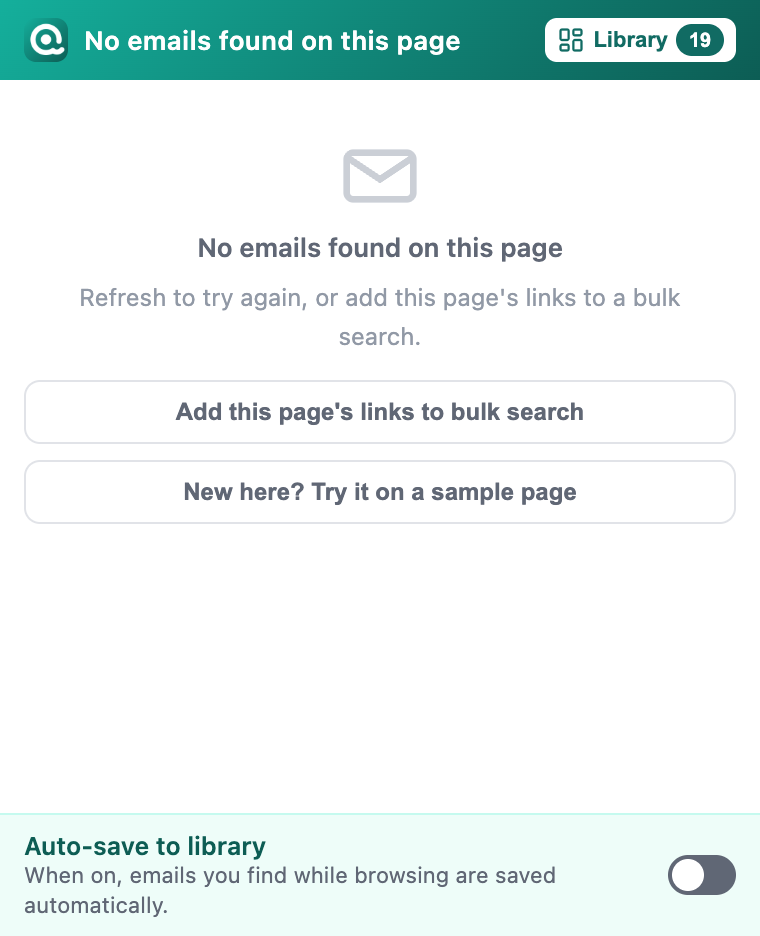
Open the sample directory in a new tab and click the Email Extractor Plus icon. The popup says No emails found on this page, and that is correct: a directory gives you links, not addresses. The popup offers Add this page's links to bulk search as a shortcut; for this walkthrough, press Library in the popup's header instead and open Bulk search in the sidebar, so you can see the import options.
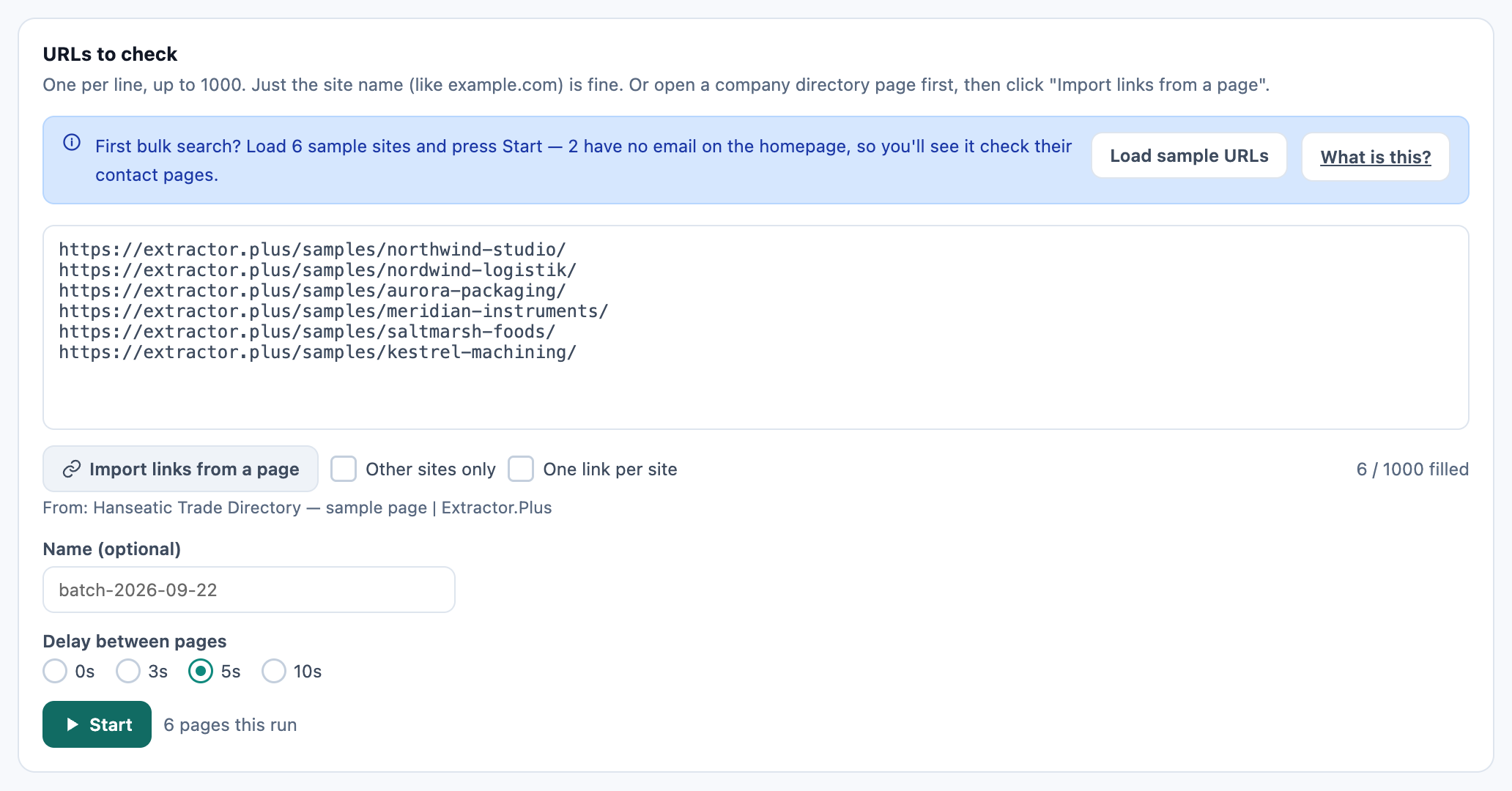
In Bulk search, press Import links from a page. Next to it are two boxes, ticked by default: Other sites only and One link per site. On a real directory those defaults are what you want — the links go to other companies' domains, so you get one entry per company and none of the directory's own navigation.
The sample is the exception. Our six fictional companies all live on extractor.plus, the same site as the directory, so with the defaults the import finds one link or none. Untick both boxes before importing and you get all six. The line under the button confirms where they came from: From: Hanseatic Trade Directory. Unticking both is also how you run a whole domain — a company's homepage plus its contact, team and press pages.
Or paste your own list
Paste into URLs to check. On your first bulk search a Load sample URLs button fills in the same six sample sites. Give the run a name under Name (optional) if you want to find it again later; otherwise it is named after the date.
Step 2 — Two settings that decide your yield
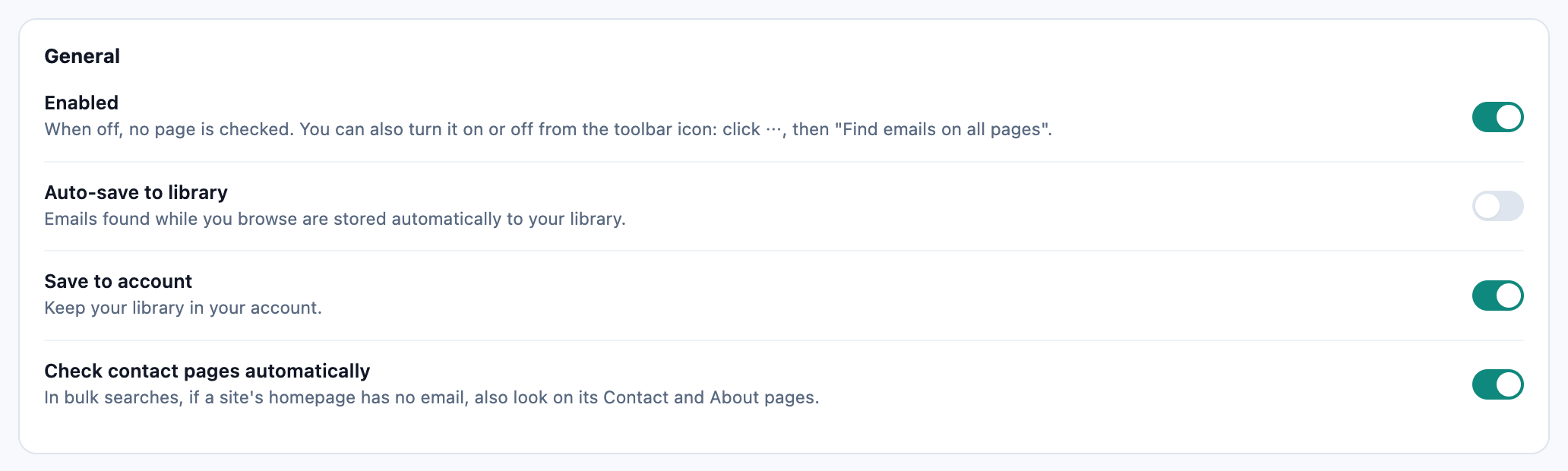
Check contact pages automatically, in Settings. When a site's homepage has no email, the run looks for that site's Contact, About, Team or Impressum page and reads that too. It stays on the same site and goes one level deep. On the sample it is the difference between 9 emails and 14.
With the setting off, bulk search still visits every site on the list; a homepage with no email is simply recorded as empty. Leave it on when your list is mostly small companies, which often keep their address on a contact or imprint page rather than the homepage.
Delay between pages, back in Bulk search: 0s, 3s, 5s or 10s. Pages opened back to back can get you rate-limited or blocked partway through a run, and then you cannot tell which sites really had nothing. Three seconds or more is the safer choice; point 3 of the scrape guide explains why.
Step 3 — Start the run and leave it
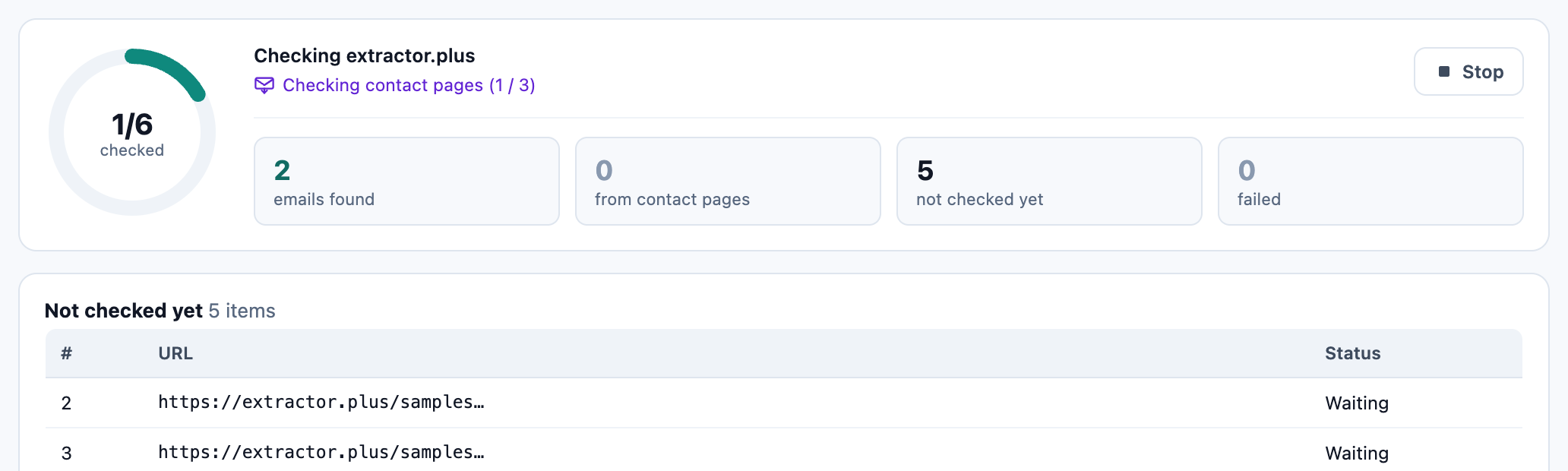
Press Start. Email Extractor Plus opens its own window and works through the queue. The dashboard shows how many sites are done, the site it is on, the emails found so far, how many came from contact pages, and what is still waiting. Stop pauses it; you can continue later. If you close the bulk search window by accident, the run pauses and the rest of the queue is kept.
Pages that ask for a login or a CAPTCHA are not forced; they are listed under need a look for you to open yourself.
Step 4 — Read the results
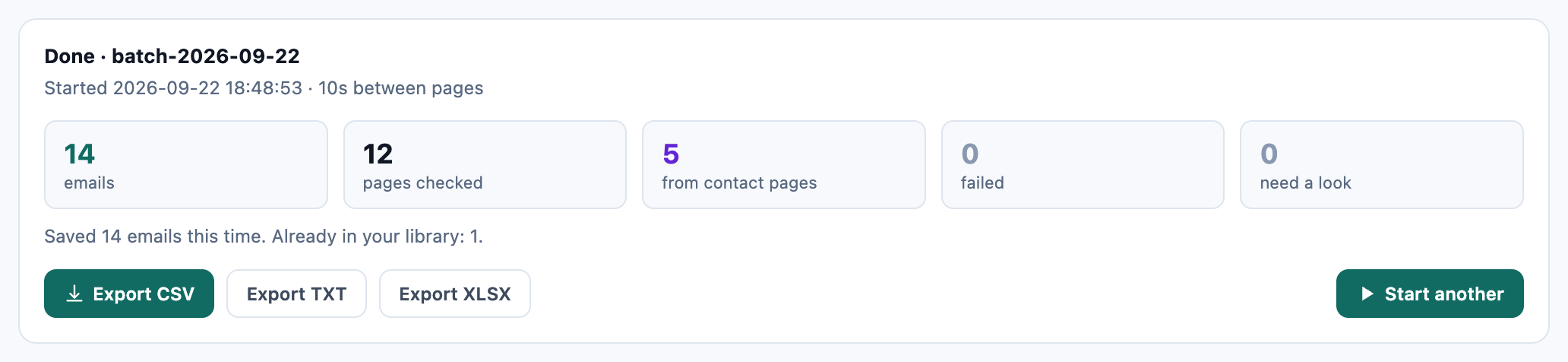
The finished card reads 14 emails · 12 pages checked · 5 from contact pages. The 12 pages are the six homepages plus six contact pages: two of the companies, Nordwind Logistik and Saltmarsh Foods, show no email on their homepage, so the run opened three contact pages for each. The 5 came from Nordwind's Impressum and Team pages and Saltmarsh's Contact page.
Switch Check contact pages automatically off and run it again: 9 emails from 6 pages, and those two companies come back empty. That gap is the whole case for the setting, and you can measure it yourself in about a minute.
Each address carries labels. In the popup they are coloured dots — Company, Generic, Free mail, Email link, Contact page — and in the Library they are written out. The sample addresses all end in .example, so they also get a grey !, Unusual ending: kept and flagged for you to judge, not dropped.
Six curated companies flatter the ratio. On a real list of small-business websites, usable addresses for around half of them is an ordinary result.
Step 5 — Filter and export
You can export straight from the finished card, or go to Library to choose what goes out first. Filter by source site, date, label or bulk search — for example only Company addresses, or only what came from contact pages — then pick CSV, TXT or XLSX next to Export as. The CSV opens directly in Excel or Google Sheets.
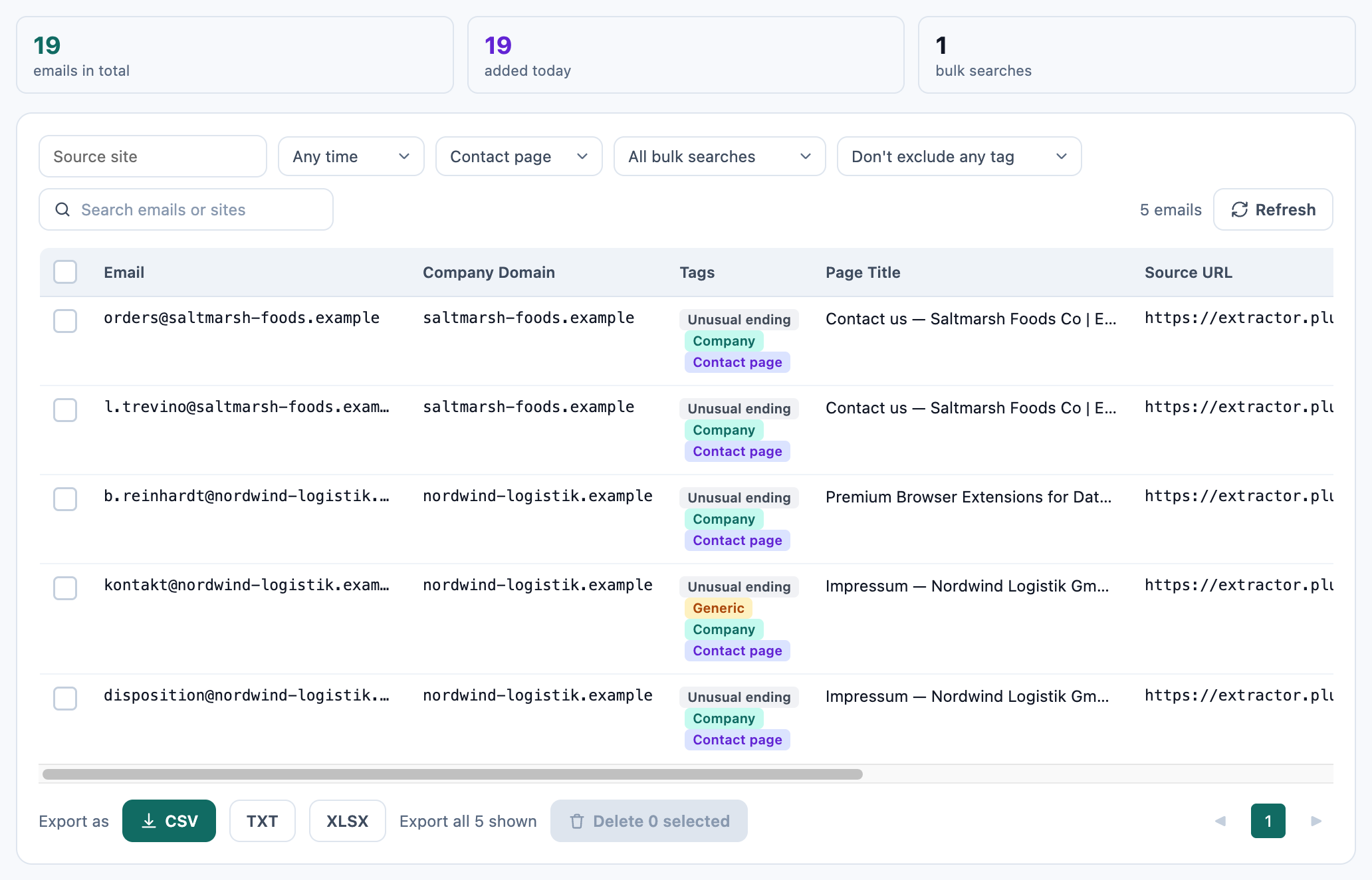
The CSV has eight columns: email, source URL, starting URL, page title, company domain, when it was found, labels, and which bulk search it came from. Months later you can still tell where every row came from.
Bulk email scraper limits worth knowing before a big run
- 1,000 URLs per run. Split a longer list into several named runs so each one is easy to find again in the Library.
- The delay adds up. At 5 seconds between pages, 1,000 sites take well over an hour before load times, and contact pages add more. Start big runs when you can leave the window alone.
- Logins and CAPTCHAs are not forced. Those pages land under need a look; open them yourself, and anything you find there can be extracted from the popup as usual.
- It uses one of your browser windows and is slower than a server, but pages render the way you see them.
- Some sites have no email to find. A contact form, an address in an image, nothing at all. Judge a tool by how many empty results it explains, not how many it hides.
Before you send anything
Collecting a published address and being allowed to email it are two different things. The GDPR, CAN-SPAM and similar laws apply to what you send, and a list of hundreds makes that matter more. The company email guide has a longer note.
FAQ
How many URLs can a bulk email extractor handle at once?
Up to 1,000 per run in Email Extractor Plus. If you stop a run partway, the sites not yet checked stay in the queue and you can continue later.
Can I extract emails from a URL list without opening each site?
Yes. Paste the list and press Start; the extension opens and reads each site in its own window.
What happens when a website's homepage has no email address?
With Check contact pages automatically on, the run reads that site's Contact, About, Team or Impressum page. With it off, the site is recorded as empty.
Can I import links from a directory page instead of pasting URLs?
Yes: Import links from a page in Bulk search. Keep Other sites only and One link per site ticked on a real directory; untick both when the companies share the directory's site, as on our sample.
What's the difference between a bulk email extractor and a bulk email finder?
A bulk email finder takes names and domains and looks addresses up in a database. A bulk email extractor visits websites and reads the addresses published on them. If you only have a list of websites, you want the extractor.
Will a bulk email scraper get my IP blocked?
It can if pages are opened back to back. Set Delay between pages to 3 seconds or more. Pages that ask for a login or CAPTCHA are listed for you, not forced.
Put your list through it
Up to 1,000 URLs per run, in your own browser, with every address labelled and traceable to the page it came from. Free to install, no account, no card.